So today was one of those days when I had a lot on the go.
I had back to back meetings.
I had a huge to-do list.
But then, this happened.
This is what the winter storm looks like from space.
What is a bomb cyclone?
It describes how this storm explodes.
Wind speeds are increasing here hour by hour.
It could be like a mega bomb type of thing.
So I thought I would take this opportunity and kind of give you guys a little tutorial
on the basics of editing.
This video is really intended for those who have never really edited before or maybe you've
done it a little bit but haven't really done it with Adobe Premiere Pro or just in
general, you are looking to get started with some filmmaking and editing.
But first, I need to go outside and shoot some footage cause it's crazy out there.
Let's do this.
{Music}
I went outside.
It's beautiful.
It's amazing outside.
I'm actually really excited to go back out there but before, I do that, I want to dive
into Premiere Pro with you and kind of get you started with it.
Ok so, I just want to start off by saying that I use Adobe Premiere Pro CC version 12.0.0
at the moment.
The reason why I use Premiere Pro is not necessarily because Premiere Pro is the absolute best
out there on the market.
I use it because I use a lot of Adobe programs including After Effects.
I use Lightroom and Photoshop.
I use InDesign.
I use Illustrator.
I use Audition.
It's so much easier for me to just get that Creative Cloud membership which gets me all
of these programs just in one subscription fee rather than paying for a bunch of different
programs and different subscription fees.
K, so once you have launched Premiere Pro, you are going to see this screen here.
If you had created a project recently, they would show up on this list.
Now, because we haven't, we are going to go over and hit 'New Project'.
Now, I do want to mention you might - if this is the first time you're opening up Premiere
Pro, you might see something a little bit different but don't panic.
Usually the 'New Project' button is down in bottom corner, or you will see 'Open
Project'.
So, don't worry.
Just find your 'New Project' button.
Let's go ahead and click that.
Now, we are going to go in and we are going to name this.
So, I'm going to call this Snow Storm.
And I am going to click this Browse button and I am going to save it in my Project Files.
Choose.
Save it as Snow Storm.
Don't worry about the rest of the settings.
Most likely, your default settings are just fine to get you started.
The goal today is not to overwhelm you so go down to the bottom right corner here and
click okay.
Cause we are doing okay so far.
So once you've opened up Premiere Pro, you're going to see your Workspace.
Now, for today, we only need a few of these boxes open.
So today, we have our Project box.
Then, over here, I've got our Program and our Source.
Down here, we have our Timeline.
We have these thingamajig, clicker, fancy, doodle things and over here, just our audio.
In order to edit anything in Premiere Pro, we need to now bring that footage into Premiere
Pro.
So, a couple ways to do this.
One.
Come on up here to 'File', bring your mouse all the way down to 'Import', click
that button.
Then find your footage folder.
Select all of your footage and then click 'Import'.
You're going to get this little dialogue box here.
And now it's going to show up in your Project box.
The other option - I'm just going to go ahead and undo that.
Double click.
So, you are in your project box, you double click it in the empty spot.
Then you'd find your folder again.
So, I was just there but I'm going to bring it back up.
You select all of your footage.
You click Import.
K, so now that we have our footage brought into our project, here it is.
Normally, I would then go in and I would organize it even more but for today, I am throwing
all that out the window.
I am keeping it chill for you guys.
Keeping it simple.
So, now we need a space we can actually edit this footage in.
And where we are going to do that is in our Timeline.
So, we need to create a sequence.
So, the way we do that is we come up here.
We click 'File', 'New', 'Sequence'.
So, now we have this 'New Sequence' dialogue box.
For today's purposes, we are shooting on a DSLR 1080p 24 frames.
Let's come on down, we're going to name the sequence.
I'm going to call it Snow Storm.
I'm not going to make any typos.
I'm going to click Okay.
So, now we need to actually bring clips into our sequence and onto our timeline.
Again, there's a couple ways to do this.
One.
We can just go up.
We can select all of our clips, drag them in.
Or the other option is we go through each individual clip.
When we double click a clip in our Project box, it's going to open up this source box.
So, note, it's not playing what's on the Timeline, it's playing the clip itself.
Then, we can come over here and we can watch this clip through and we are going to set
some In and Out points.
Now the quickest way to do this is with your keyboard using the letters 'I' and 'O'.
'I' for the In point so the part where the clip starts.
When you come in on it.
And then, 'O' for the Out point.
So when it ends.
When you want it to end.
I'm going to say I want it to start on this motion and then I want to end just as it starts
to zoom in.
Okay, so now that we have our In and Out points, we are going to drag it down into our Timeline.
So, now I'm going to go through and I'm going to pull out all of the clips that I want to
use for this very basic sequence.
So, again, you have the option to continue like this.
You go through.
You say I want it to start here and then, you find your out point which maybe is like
right there.
And then, you drag it in, you line it up.
And you make sure it starts right at the beginning of your sequence.
Fantastic.
Or, I have the option to select all, drag it all in and now I'm going to scrub through
and I'm going to edit.
But where I have a whole bunch of clips here, I'm just going to right click and I'm going
to select 'Scale to Frame Size' and boom.
I almost forgot the most important part of Premiere Pro.
Your best friend is the Space Bar.
The space bar is what's going to play your sequence and what's going to stop it.
It's the best thing ever.
I could make a whole video on hot keys alone.
Maybe I will.
So, right now, we just see our little mouse guy down here.
I'm going to go to my keyboard and I'm going to hit 'C'.
And now it brings up a Razor tool.
The other way to access this is to come over into our thingamajig box, and we see that
Razor tool.
We click it and now we have our Razor.
If ever you forget the hot keys or you're still learning them, when you hold that mouse
over any of these buttons, it will automatically bring up what the hot key is.
So, for today we are pretty much going to be going between 'V' and 'C'.
'V' being the selection tool and 'C' being the razor tool.
I hope this is making sense.
This is my first one.
I'm not sure what I'm doing.
Now, we come down and we click where we want it to end.
I want it start.
Where do I want it to start?
I want it to start right about here.
I'm going to click that and then I'm going to click my 'V' so I have selection tool back.
I'm going to click on the part of the clip that I no longer want and then I'm going to
hit delete.
I'm going to click on the other part, I'm going to hit delete.
And then, I'm going to select the space in between the two clips.
Hit delete again and they are automatically merged together.
So, I'm going to go through and I'm going to pull out maybe like two more clips for
you right now and then we're going to move on.
Because you just want the basics.
You want the information.
You want it fast so you can get outside and shovel.
So, that's all I want to do for right now.
We learned how to create a new project.
We learned how to bring that footage into that project.
We learned how to bring that footage down into our timeline.
And we learned how to just make some basic edits.
Now that we have a few clips that we like, we're happy with.
We're like yeah, this looks awesome man.
All we are going to do is we are going to export.
So, we are going to come up to 'File'.
We're going to come down.
Yes, you guessed it.
And then, I am going to click Media.
And then it is going to bring up our Export dialogue box.
If we want to learn a lot about that today, I highly recommend you check out Matt Whoismatt
Johnson on YouTube.
I will put his video here.
Can you see it?
Am I doing it right?
Is it like right here?
Like, right around here?
So, for today we are just going to leave the default settings, whatever came up, as is.
Cause I'm sure that will be just fine for you for now.
So, just don't worry about this.
But one thing we are going to do is we are going to make sure that where we save it,
we will be able to find it.
So we are going find right here where it says 'Output Name' and you see the text will be
highlighted in blue.
I want you to click it.
So this is going to bring up our Finder box or your Windows computer thing.
And we are going to put this where we want it.
So, I'm going to go back into my original folder on my computer.
I had already created and exports folder.
I highly you do that.
Again, media management for another time.
I'm going to name the file as version one underscore snow storm underscore and then
I always put the date at the end.
I also think - I just realized.
I totally think it's still 2017.
Look at that.
I created my original project file as 2017.
Do you guys find it that it takes you awhile to adjust to the new year?
Goodness, anyways.
Then, we are going to hit 'Save' and now we can see that our file name has changed here.
That's awesome.
And we are just going to come down to the bottom here and click Export.
And wait.
And when it's done, it disappears.
Where the heck did it go?
Well, we are going to come back to our Finder and we are going to see it in our Exports
folder And here it is.
We can now play it and just like that, we now have a movie file that we just edited.
You guys.
You just did this.
Look what you just did.
You just put clips together.
Have you done this before?
Maybe.
But if you have, I don't know why you are watching this video cause it's probably quite
irrelevant to you at this point.
So, thank you guys so much for watching today.
I really appreciate it.
I hope to make a lot more tutorial videos just like this to help you guys go from Beginner
to Pro or at least from 'I have no freaking clue what I'm doing' to 'I have a clue' and
that would be awesome.
Let me know what you guys would like to learn if there is anything specific.
But otherwise, as I continue to on with these tutorials, I'm going to slowly dive deeper
into Premiere and maybe some other programs like After Effects or Photoshop or Lightroom
or all of them.
If you do want to see more, please click that Like button and hit that subscribe button
cause lots of good things happen when you do.
And I hope you guys have a fantastic day!
I almost forgot about my lame joke.
What time did the person go to the dentist?
Tooth-hurt-y.
Tooth-hurt-y.
Too-thurty.
Okay, I have to go shovel now.
Bye.

 For more infomation >> Couple beg for return of dog stolen inside owner's truck - Duration: 0:43.
  For more infomation >> UNM receives tort notice for defamation - Duration: 2:30.
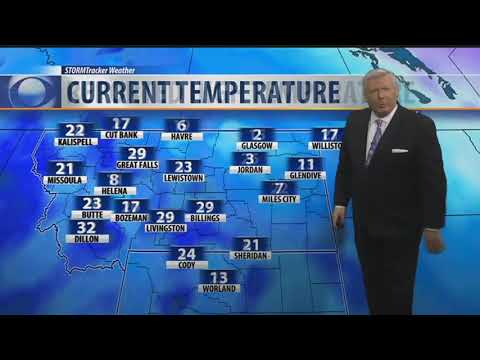 For more infomation >> Q2 Weather: 10 p.m. with Bob McGuire for Jan. 4, 2018 - Duration: 3:06.
 For more infomation >> New baby boy for WVTM 13 anchor Ian Reitz - Duration: 0:13.


Không có nhận xét nào:
Đăng nhận xét